How I Built an AI Assistant That Runs My Daily Life
I have a problem most creative people know well: too many projects, not enough brain.
At any given time, I'm working on a book, a Substack, freelance work, and a part-time degree — while co-parenting a two-year-old. For years, ideas and todos fell through the cracks between apps: A note here, a task there, nothing talking to each other.
So I built a system.
The Stack
Three components, each doing a specific job:
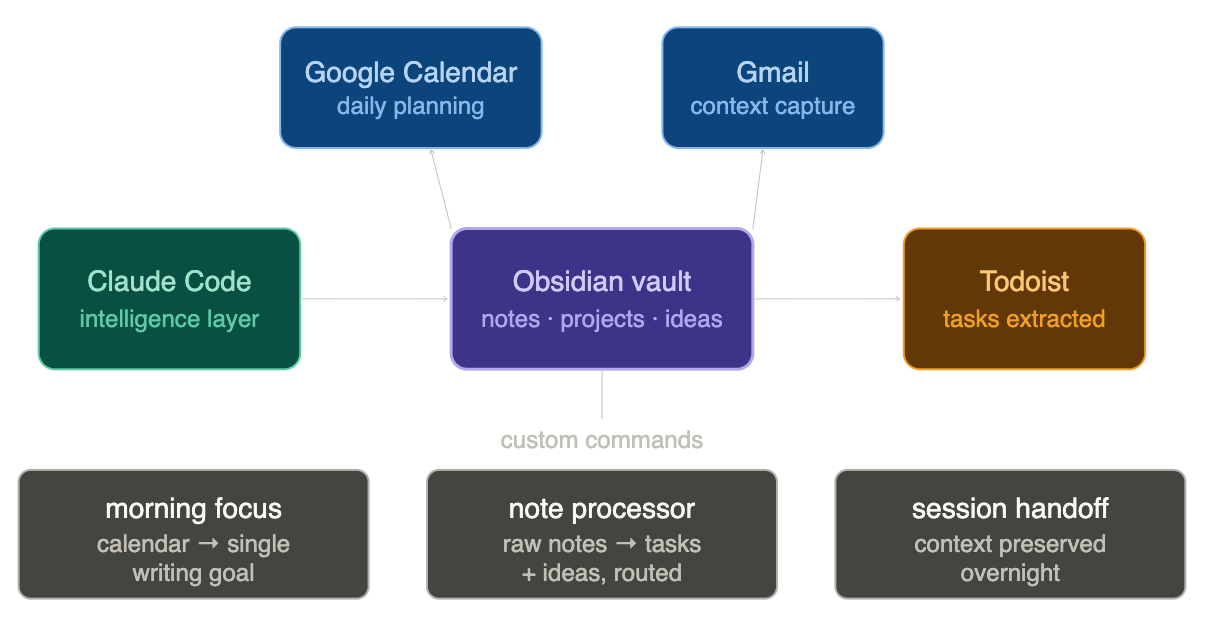
- Obsidian — a local markdown vault that holds everything: daily notes, project docs, people, ideas
- Claude Code — Anthropic's CLI, running directly inside the vault
- MCP servers — connectors that give Claude access to Google Calendar and Gmail
The key insight before we dive in: the AI doesn't replace the system. It makes the system frictionless. You still decide priorities. You still do the work. But nothing disappears anymore.
Step 1: Set Up Obsidian as Your Vault
If you don't have Obsidian yet, download it from obsidian.md. It's free, local-first, and stores everything as plain markdown files — which matters because Claude can read them directly.
Your vault structure doesn't need to be complex. Mine looks like this:
📁 00_Inbox
📁 01_Notes
📁 02_Projects
📁 03_Areas
📁 Daily Notes
The key folder is Projects — one subfolder per active project, each with an _index.md that describes what the project is, where you left off, and what's next. This becomes the context Claude reads when you ask about a project.
Step 2: Install Claude Code
Claude Code is Anthropic's official CLI. Install it with:
npm install -g @anthropic-ai/claude-code
You'll need an Anthropic API key. Get one at console.anthropic.com.
Then navigate to your Obsidian vault in the terminal and launch it:
cd ~/your-vault
claude
That's it. Claude now has access to every file in your vault.
Step 3: Connect Your Tools via MCP
MCP (Model Context Protocol) is what lets Claude talk to external services. Google Calendar and Gmail are available via claude.ai's built-in integrations if you're on a Claude Pro plan — connect them in your Claude settings under Integrations. They appear automatically in Claude Code once connected.
This means Claude can check your calendar, surface today's events, and read or draft emails — all from inside your vault.
Step 4: Write a CLAUDE.md File
This is where the system gets personal. CLAUDE.md is a file you place in your vault root. Claude reads it at the start of every session. It's your persistent context — who you are, what your priorities are, how you want to be helped.
Mine includes:
- My daily rhythm (without and with my son)
- Active projects and where I left off
- Key people and relationships
- Phase flags (what's urgent right now)
The more specific it is, the more useful Claude becomes. Don't write it once and forget it — update it when your priorities shift.
Step 5: Create Custom Slash Commands
Slash commands are where the system becomes a daily driver. In Claude Code, you create them as markdown files in .claude/commands/.
Here are the three I use every day:
/morning — pulls today's calendar events, open tasks, and surfaces one writing goal. Reads my CLAUDE.md to understand context. Output is capped at 10 lines so it doesn't become another thing to read.
/dump — I paste raw notes, voice transcription, or a brain dump. Claude extracts tasks, flags calendar items, and files ideas into the right project folder in Obsidian. Takes 30 seconds instead of 10 minutes.
/ship — end-of-session handoff. Summarizes what happened, what's pending, and what the next session should start with. Appended to my daily note. Means I never lose context between work blocks.
The Daily Flow
Without this system, my mornings started with 10 minutes of orienting — checking multiple apps, figuring out what mattered, trying to remember where I left off.
Now:
- Open terminal in vault
- Run
/morning— 10 lines, done in 30 seconds - Work
- Paste any notes or ideas into
/dumpas they come up - Run
/shipat the end
Everything stays connected. Projects don't go cold. Ideas don't get lost.
What This Isn't
This isn't a magic productivity system. It doesn't make decisions for you or manufacture focus. What it does is eliminate the friction between having a thought and capturing it, between starting a session and knowing what to work on.
The intelligence is yours. Claude just makes sure nothing falls through the cracks.